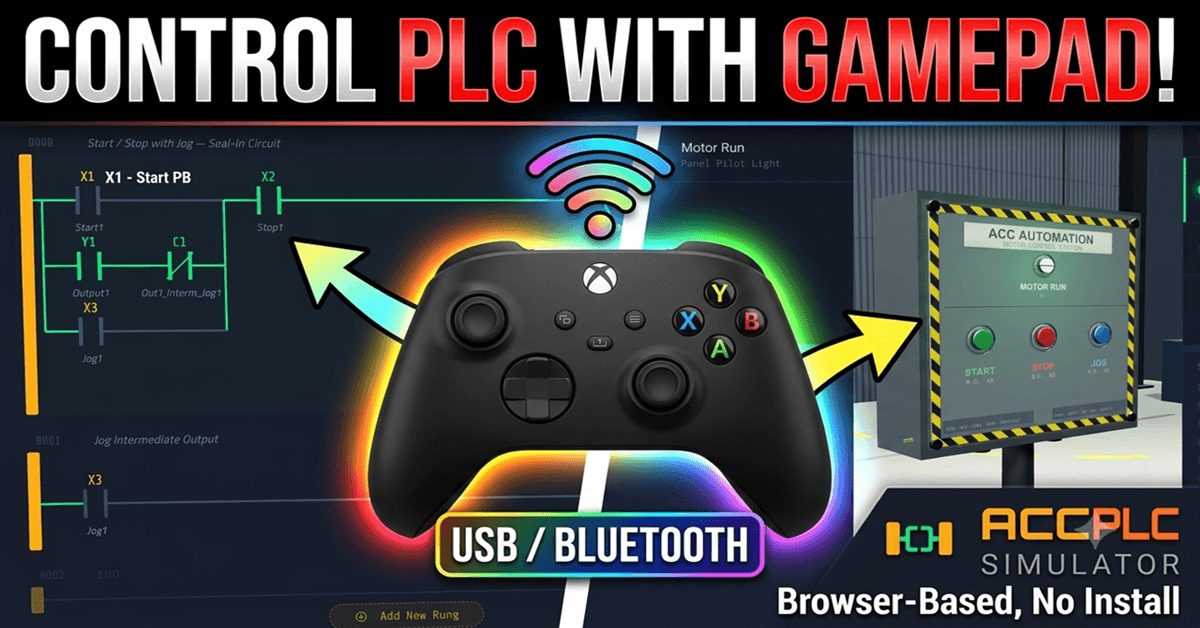
The ACC PLC Simulator now supports simulator gamepad input. Plug in any standard USB or Bluetooth controller, and you can drive PLC inputs, control analog values, navigate 3D scene cameras, and run your program without ever touching the keyboard.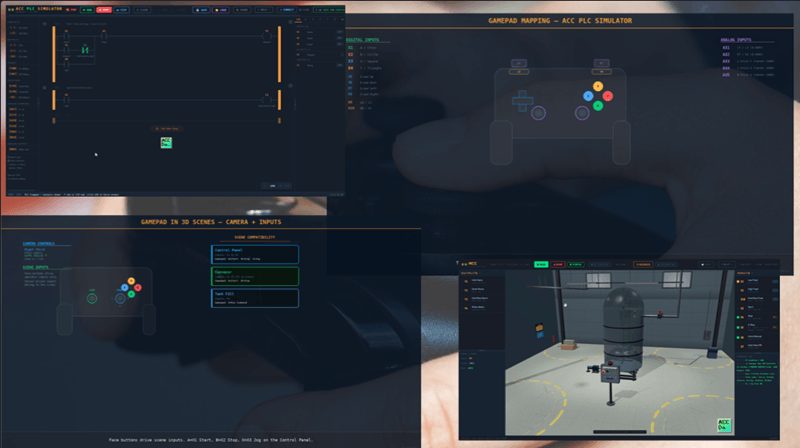
This works with Xbox controllers, PlayStation controllers, generic USB HID gamepads, and most Bluetooth controllers. There is nothing to install. The simulator uses the W3C Gamepad API built into every modern browser. As long as your operating system recognizes the controller, the simulator will see it. Watch the video below to see this in action.
Try it now: accautomation.ca/simulator/
Previously, we examined the following using the ACC PLC Simulator with 3D Scenes:
PLC Programming Tutorial: Build a Conveyor System (ACC Simulator) – Video
Control 3D PLC Scenes With Zero Hardware? Here’s How… (Modbus TCP/RTU) – Video
ACC PLC Simulator – How to Use the Free Browser-Based PLC Trainer – Video
How to Use the ACC PLC Simulator — Control Panel Scene Tutorial – Video
Why Use a Simulator Gamepad?
Here is what makes a simulator gamepad useful for PLC simulation.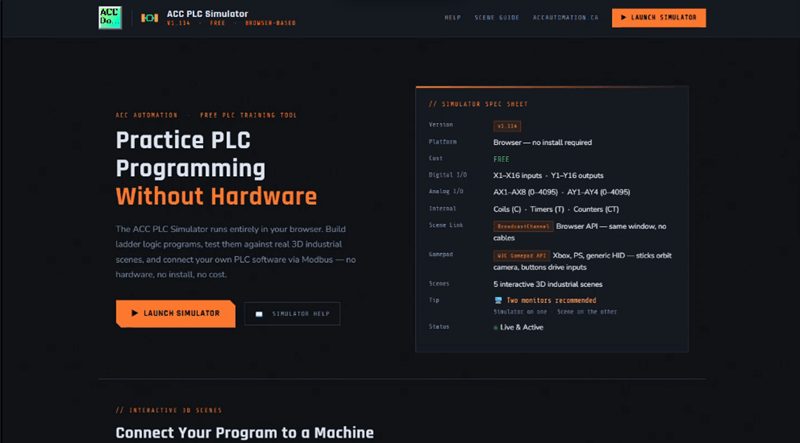
Analog sticks and triggers map to AX1 through AX5 with a range of 0 to 4095. That is the same range a real potentiometer or 4 to 20 milliamp transmitter produces. You can smoothly control analog inputs the way a real process signal would behave. Try doing that with a mouse slider.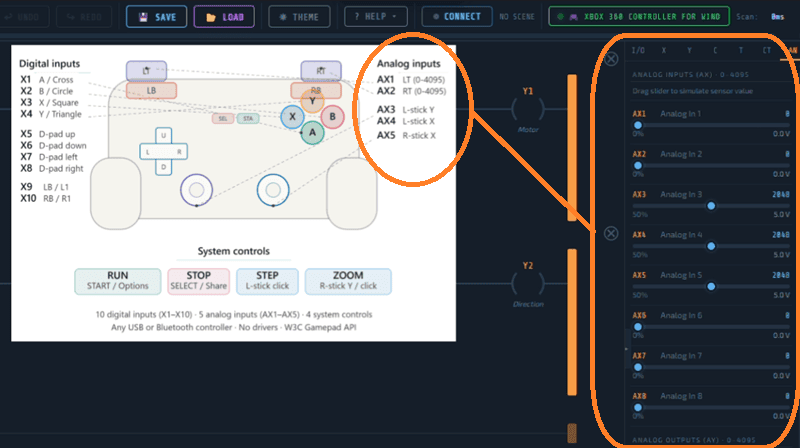
Face buttons act exactly like momentary pushbuttons. Press A and X1 goes true. Release A and X1 goes false. This is the same behavior as pressing a physical pushbutton on a PLC trainer.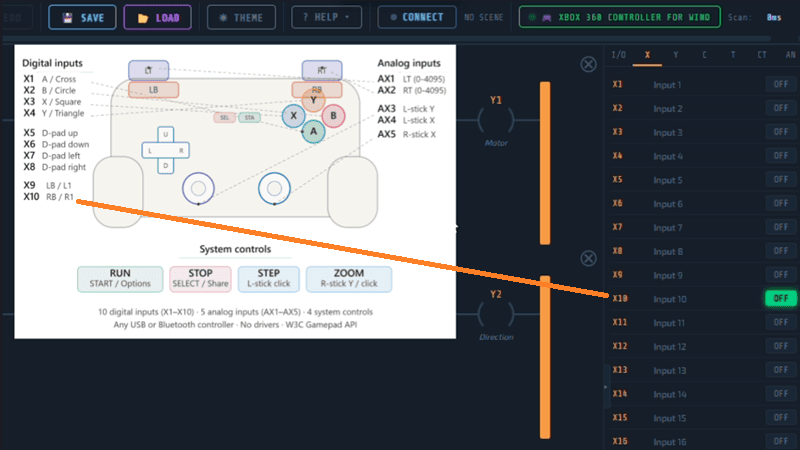
System buttons give you hands-free program control. Press START to run the program. Press SELECT to stop it. Click the left stick to execute a single step. No reaching for F5, F4, or F6 on the keyboard.
In the 3D scenes, the analog sticks control the camera. Orbit around a conveyor, zoom into a control panel, and inspect your machine from any angle using the controller. It is the closest browser-side input to a real industrial control surface. Watch the video below.
Getting Started (ACC PLC Simulator Gamepad)
Plug in your controller. Open the simulator in Chrome, Edge, or Firefox. Press any button on the simulator gamepad. The toolbar badge will change from NO PAD to a green badge showing your controller name. That is it. You are connected.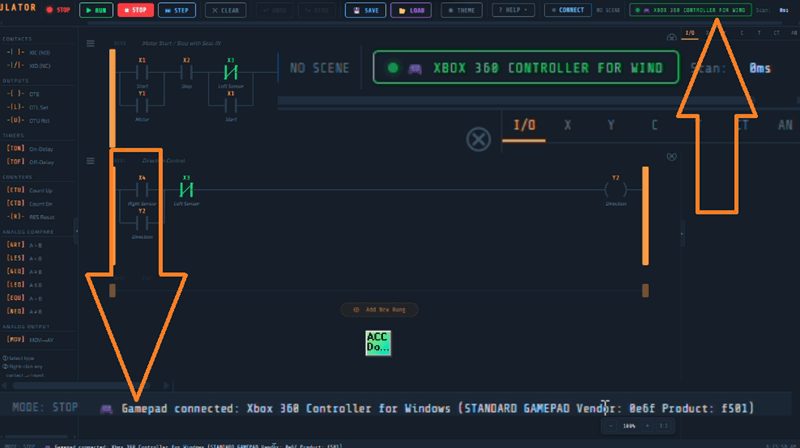
If the badge stays grey after plugging in, press any button or move a stick. The Simulator Gamepad API requires a first input before it reports the controller to the browser. This is a browser security requirement, not a simulator limitation.
Default Button Mapping
Here is the complete default mapping for the simulator.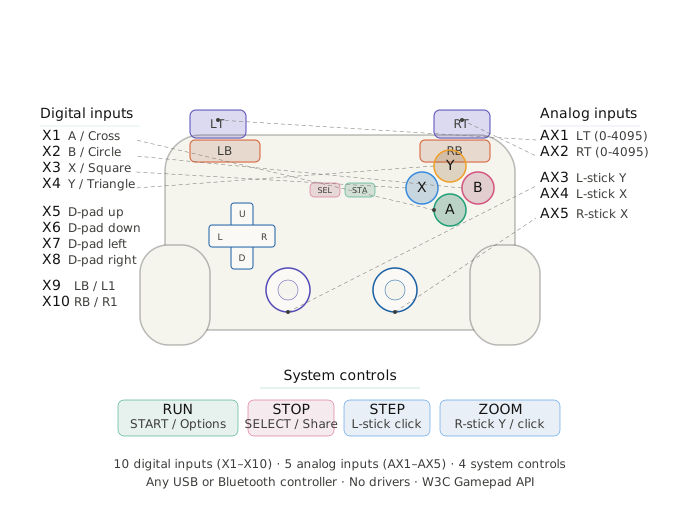
Digital Inputs (Momentary)
| Control | Address | Behavior |
|---|---|---|
| A / Cross | X1 | Momentary — ON while held |
| B / Circle | X2 | Momentary |
| X / Square | X3 | Momentary |
| Y / Triangle | X4 | Momentary |
| D-pad Up | X5 | Momentary |
| D-pad Down | X6 | Momentary |
| D-pad Left | X7 | Momentary |
| D-pad Right | X8 | Momentary |
| LB / L1 | X9 | Momentary |
| RB / R1 | X10 | Momentary |
Analog Inputs (0 to 4095)
| Control | Address | Behavior |
|---|---|---|
| LT / L2 (analog trigger) | AX1 | 0 to 4095, deadzone at rest |
| RT / R2 (analog trigger) | AX2 | 0 to 4095, deadzone at rest |
| Left stick Y | AX3 | 0 to 4095, centered at 2048 |
| Left stick X | AX4 | 0 to 4095, centered at 2048 |
| Right stick X | AX5 | 0 to 4095, centered at 2048 |
System Controls
| Control | Action |
|---|---|
| START / Options | RUN (same as F5) |
| SELECT / Share | STOP (same as F4) |
| Left stick click | STEP — single scan in STOP mode |
| Right stick Y | Zoom — hold up to zoom in, hold down to zoom out |
| Right stick click | Reset zoom to 100 percent |
Using the Gamepad with the Control Panel Scene
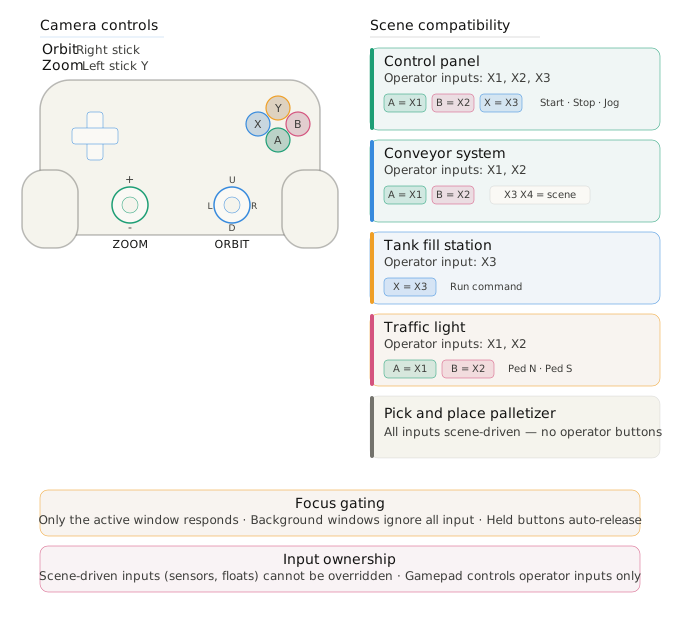
Connect the Control Panel Scene and put the simulator in Run mode using the START button on the simulator gamepad. The Control Panel Scene uses X1, X2, and X3 for its pushbuttons.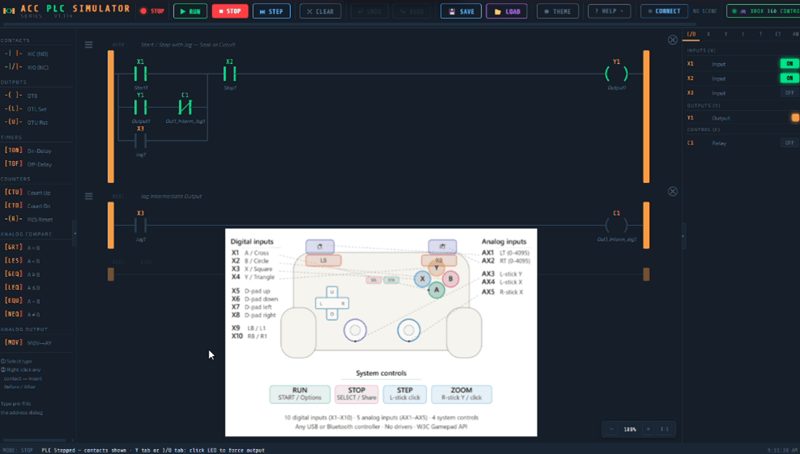
Press A on the simulator gamepad to activate X1 (Start). The motor run pilot light turns on. Release A. The seal-in holds. Press B to activate X2 (Stop). The motor stops. Press X to activate X3 (Jog). The motor runs while you hold the button.
This maps perfectly because the default mapping puts the three face buttons on X1, X2, and X3. You can run the entire Start Stop Jog program without touching the mouse or keyboard.
Using the Gamepad with the Conveyor Scene
The Conveyor Scene uses X1 through X4. Press A for Start (X1). Press B for Stop (X2). X3 and X4 are the proximity sensors which are driven by the scene, so the simulator gamepad cannot override those. The scene’s sensors always win. But you still have D-pad and shoulder buttons available on X5 through X10 if you need additional test inputs.
Scene Camera Navigation
In the 3D scenes, the gamepad sticks control the camera. The right stick orbits the camera left, right, up, and down. The left stick Y axis zooms in and out. This uses the same key bindings as the arrow keys and mouse wheel so the behavior is identical to keyboard and mouse navigation.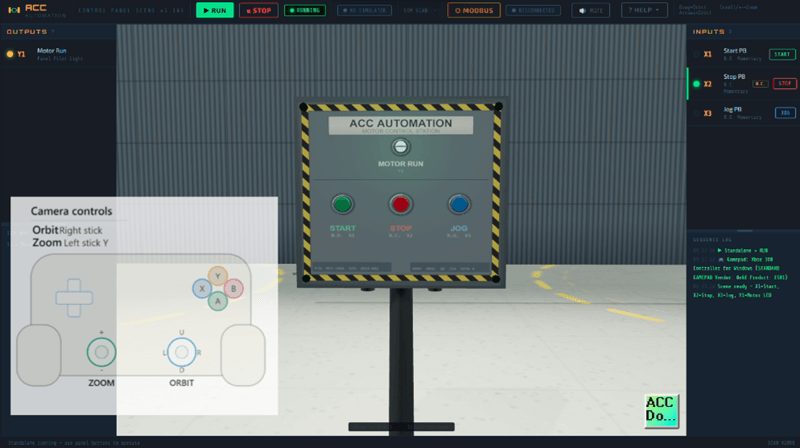
Camera navigation works in every scene automatically. There is nothing to configure. The sticks drive camera movement in scenes but drive AX values in the simulator. The system knows which window has focus and routes the input correctly.
Focus Gating – ACC PLC Simulator Gamepad
When you have the simulator and one or more scenes open in separate windows, the simulator gamepad only sends input to the window that has focus. Press a button and only the window you are looking at responds. The other windows ignore the input.
If you switch focus away from a window while holding a button, the system automatically releases the button to prevent stuck inputs. This is important because the W3C Gamepad API reports the same controller state to every browser window simultaneously. The focus gating in the simulator handles this so you do not have to think about it.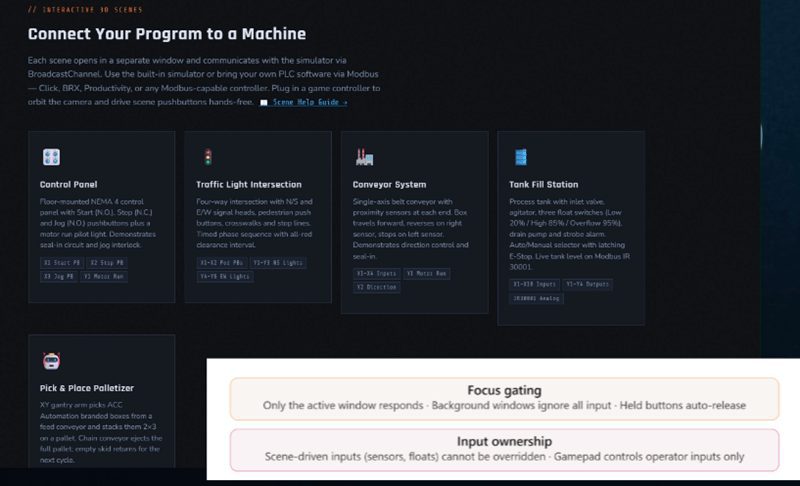
Input Ownership ACC PLC Simulator Gamepad
The gamepad follows the same input ownership rules as the rest of the simulator. When a 3D scene is connected and is driving an X or AX address, the simulator gamepad cannot override that address. The scene always wins.
For example, the Conveyor Scene drives X3 and X4 through its proximity sensors. Pressing Y on the gamepad (which maps to X4) will have no effect because the scene owns X4. The simulator gamepad still controls all the addresses that the scene is not using.
This is the same invariant that applies to the I/O panel toggle buttons and the BroadcastChannel inputs. The upstream source always wins.
Keyboard Still Works
The simulator gamepad is purely additive. F5, F4, Ctrl+Z, Ctrl+Y, Esc, Enter, and every other keyboard shortcut works exactly the same whether a controller is plugged in or not. The two input paths call the same functions. They do not conflict.
Browser Compatibility
| Browser | Support |
|---|---|
| Chrome / Edge / Brave | Full support including triggers and rumble |
| Firefox | Full support — some Bluetooth pads require pairing through OS settings first |
| Safari | Partial support — trigger axis polarity may be inverted on some pads |
Tips (ACC PLC Simulator Gamepad)
Here are some tips for getting the most out of simulator gamepad input.
Use the analog triggers (LT and RT) for process control scenarios. Map a comparison instruction to AX1 or AX2 and use the trigger to smoothly ramp a simulated analog signal. This is much more realistic than dragging a slider with the mouse.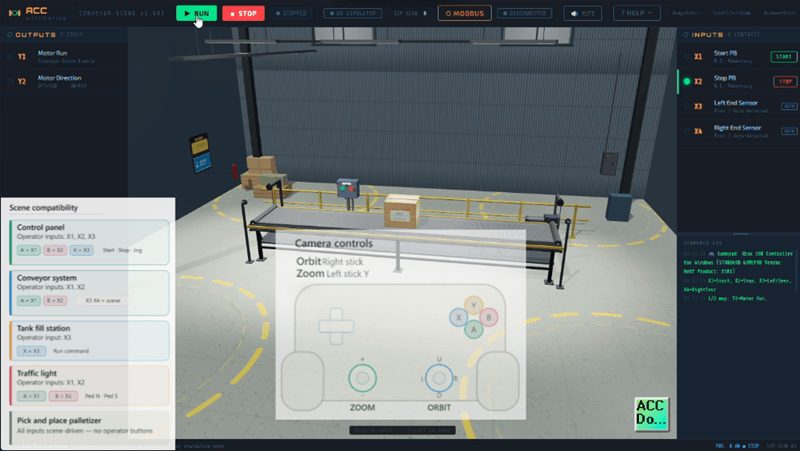
Use the left stick for analog control programs. AX3 and AX4 give you two-axis analog input centered at 2048. Write logic that responds differently above and below center. This simulates a joystick-controlled machine.
In Step mode, use the left stick click to step through scans while watching the controller inputs change in real time. This is a fast way to debug analog threshold logic.
Use the right stick to navigate around 3D scenes while simultaneously pressing face buttons to activate inputs. This is the advantage of a simulator gamepad. You can orbit the camera and press Start at the same time. Try that with a mouse and keyboard.
Watch on YouTube: ACC PLC Simulator: Any Gamepad Now Drives Your PLC! 🎮
What is Next (ACC PLC Simulator Gamepad)
Gamepad support is available now in the simulator and all five 3D scenes. Plug in a controller and try it with any scene. The analog sticks are especially useful for process control scenarios in the Tank Fill and Traffic Light scenes where you want smooth real-time input changes.
Head over to accautomation.ca/simulator/ and try it yourself.
If you have any questions or need further information, please contact me.
Thank you,
Garry