
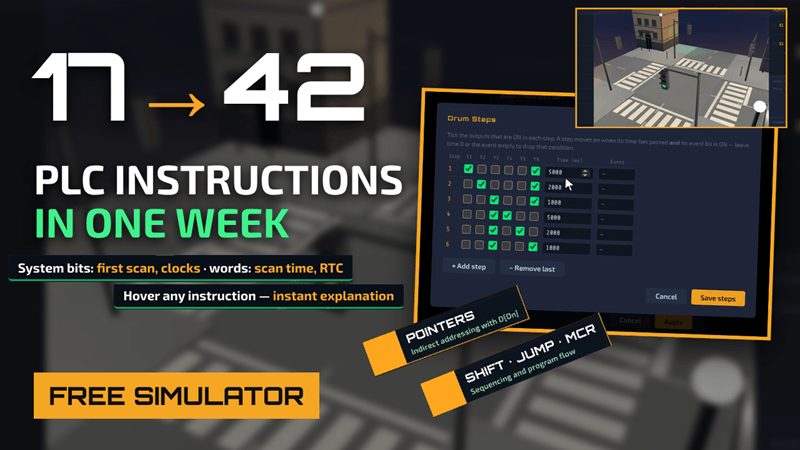
One week ago, the free PLC simulator at accautomation.ca had 17 ladder instructions. Today it has 42.
Between October 13 and October 16, the ACC PLC Simulator shipped six releases, v1.123 through v1.128, in four days. You can now change a program while it is running, step a traffic intersection with one drum instruction, pick a recipe with a pointer, track a reject through a conveyor with a shift register, and hover over any instruction to see how it works before you use it.
Everything still runs in your browser. No install, no license, no account. Open the free PLC simulator and follow along.
Watch it on YouTube:
17 to 42 Instructions in One Week: The Free PLC Simulator Just Leveled Up
The Week in One Table Free PLC Simulator
| Release | Date | What it added |
|---|---|---|
| v1.123 | Oct 13 | Rising/falling edge contacts, RTO retentive timer, CTUD up/down counter, LIM range compare, system bits SB1–SB18, system words SW1–SW19, new SYS tab |
| v1.124 | Oct 14 | Data registers D1–D4000 (INT, UINT, WORD, DINT, REAL), ADD SUB MUL DIV MOD INC DEC, CPT expressions, SCL scaling, COP, FLL, PACK, UNPACK, math fault flags |
| v1.125 | Oct 14 | Pointers — indirect addressing with D[Dn] |
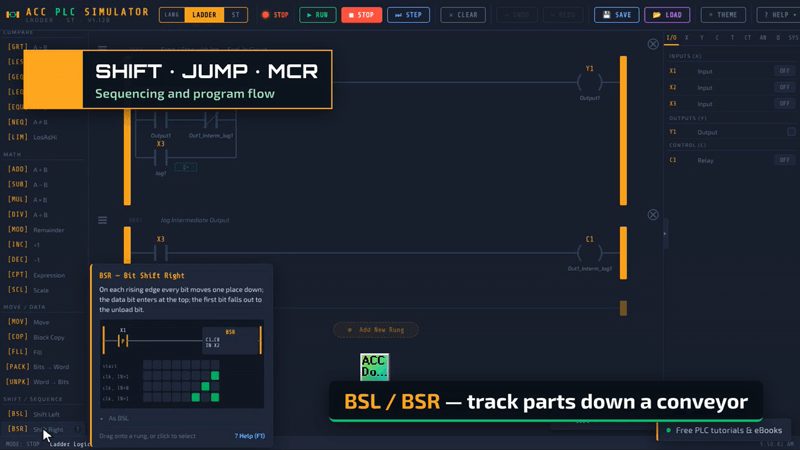
| v1.126 | Oct 14 | BSL/BSR bit shift registers, DRUM sequencer with a step-table editor, JMP/LBL, MCR zones |
| v1.127 | Oct 14 | Online editing for ladder and Structured Text — edit in RUN, then ACCEPT or CANCEL |
| v1.128 | Oct 16 | Hover cards and F1 help for every instruction, plus a click-to-insert Structured Text instruction list |
That is 25 new ladder instructions, a full data table, and the two features working PLC programmers ask about most: online edits and sequencers. Here are the highlights.
1. Online Editing — Change the Program Without Stopping the Machine
On a real plant floor you rarely get to stop the line to fix a rung. You make an online edit, check it, and accept it while the process keeps running. The simulator now works the same way.
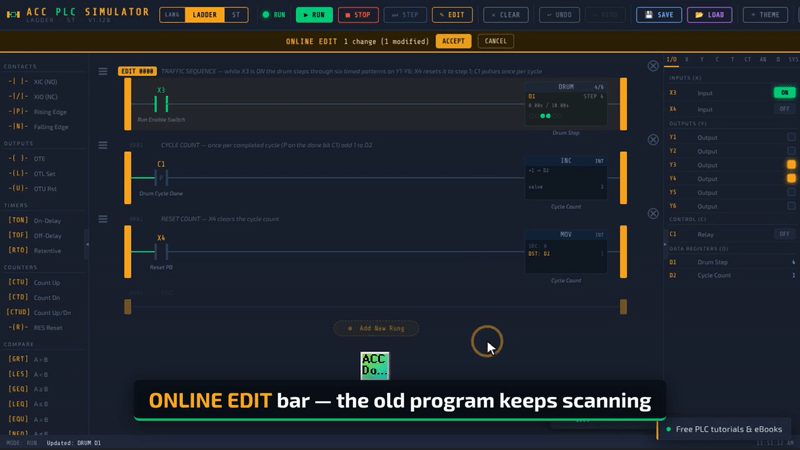
Press RUN, then click ✎ EDIT — or simply start editing. An amber ONLINE EDIT bar appears across the top of the editor. The running program keeps scanning while you work on a pending copy:
- New rungs are marked NEW in green.
- Changed rungs are marked EDIT in amber. Click the marker to see the original that is running right now.
- Deleted rungs stay on screen as grey ghosts labelled DELETED ON ACCEPT.
When you press ACCEPT, the simulator checks the edit first and refuses it if anything is wrong. If it passes, you get a confirmation that lists what changed and warns you about any outputs that would be left ON with nothing to turn them off. Then the new program is swapped in between two scans. Timers, counters, drum steps and data registers carry over — memory is never cleared. CANCEL puts everything back as it was.
Structured Text works the same way. Start typing in RUN and the gutter marks lines green (added), amber (changed) or red (removed). ACCEPT will not swap in code that does not compile.
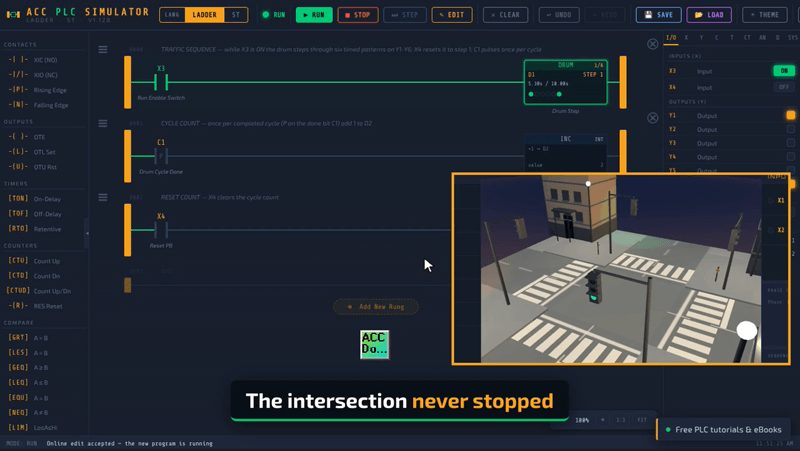
In the video, the Traffic Light scene is running when we open the drum’s step table, change the green time from 5 seconds to 10 seconds, and accept the edit. The intersection never stops.
2. DRUM Sequencer — One Instruction Runs the Whole Intersection
Sequencing six traffic lights with timers takes a stack of rungs. With a drum sequencer it takes one.
The new DRUM instruction steps through a table of output patterns. Each step has a pattern (tick the outputs that are ON), a time, and an optional event bit. A step ends when its time has passed and its event bit is ON. After the last step it wraps back to step 1 and pulses a done bit for one scan.
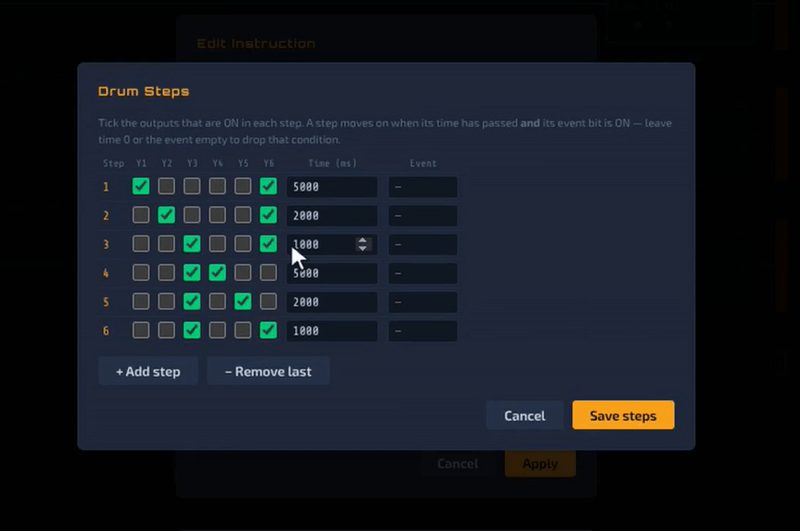
Click Edit steps… in the instruction dialog and you get a grid: one row per step, one checkbox per output. The traffic example uses six steps on Y1–Y6:
| Step | Lights ON | Time |
|---|---|---|
| 1 | NS green, EW red | 5 s |
| 2 | NS yellow, EW red | 2 s |
| 3 | All red | 1 s |
| 4 | EW green, NS red | 5 s |
| 5 | EW yellow, NS red | 2 s |
| 6 | All red | 1 s |
When the rung goes false the drum pauses and holds its outputs. A reset bit returns it to step 1. The step number lives in a data register, so the rest of your program can read it.
3. Data Registers and Pointers — Recipes the Way Real Machines Do It
The simulator now has 4,000 data registers, D1–D4000. Each instruction reads a register as the type you choose: INT, UINT, WORD, DINT or REAL. Values survive RUN/STOP and are saved with your program. A new D tab shows every register the program uses, live.
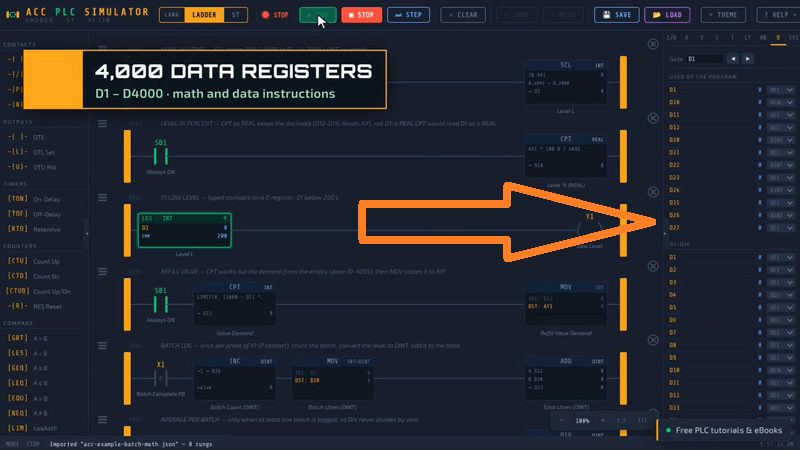
On top of that come the math and data blocks: ADD, SUB, MUL, DIV, MOD, INC, DEC, CPT (type a full expression), SCL (scale a raw value to engineering units), COP, FLL, PACK and UNPACK.
Faults behave like a real controller. Overflow, divide by zero and out-of-range access set system fault bits and write an error code and rung number into SW17 and SW18, so you can practice fault handling instead of wondering why a value is wrong.
The highlight is indirect addressing. Write D[D2] and the instruction uses the register whose number is stored in D2. The block shows the resolved address live — D[D2]→D101 — so you can watch the pointer move.
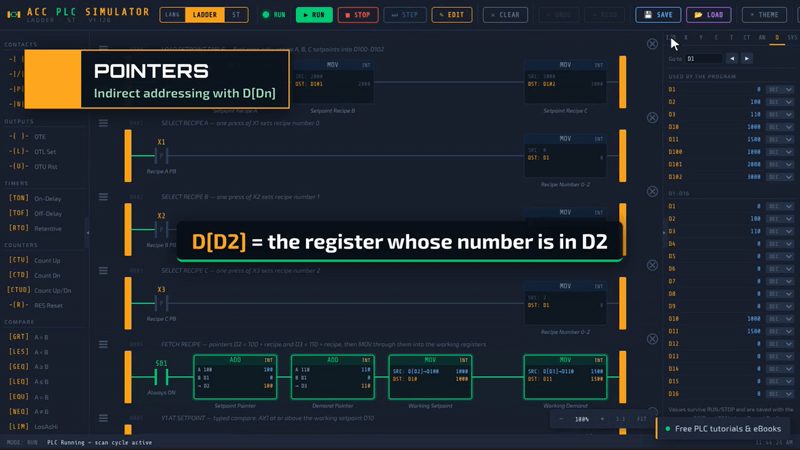
The recipe example loads three setpoints into D100–D102. Press Recipe B and D1 becomes 1, the pointer D2 becomes 101, and the working setpoint picks up 2000. Press Recipe C and it moves to D102. One rung of logic serves any number of recipes.
4. Shift Registers, Jumps and MCR Zones
- BSL / BSR shift a bit one place on each rising edge. The bottle-tracking example uses a BSL to carry a reject bit from the inspection sensor down the conveyor to the reject station — the classic tracking problem.
- JMP / LBL skip a block of rungs forward. Skipped rungs are drawn dimmed so you can see exactly what is not being solved.
- MCR / END MCR create a master control zone. When the MCR rung is false, the zone still scans with the rail off: OTE outputs drop, latches hold, on-delay timers reset. The zone is bracketed on screen and flagged MCR OFF so learners can see why their outputs died.
5. Phase 1 Instructions and System Bits
The first release of the week filled the gaps beginners hit early:
- P / N rising and falling edge contacts — one-scan pulses without building your own one-shot.
- RTO retentive timer, CTUD up/down counter and LIM range compare.
- System bits SB1–SB18: first scan, 0.5 s / 1 s / 1 minute clocks, error flags, scene and gamepad status.
- System words SW1–SW19: real-time clock, scan time, scan count, time in RUN, error code and rung.
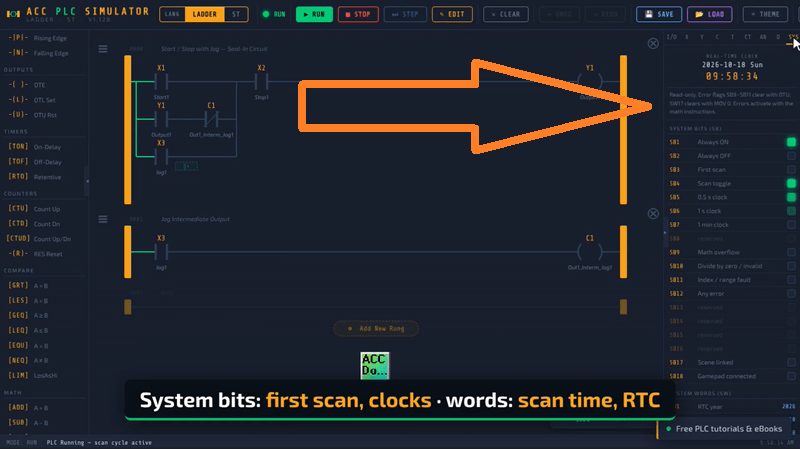
All of it is visible on the new SYS tab.
6. Help Where You Need It — Hover, F1, Click to Insert
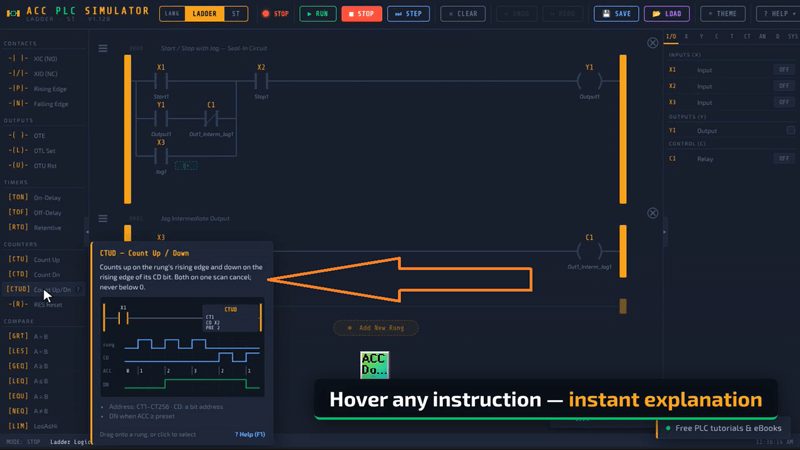
With 42 instructions in the palette, you need help close at hand. Hover over any instruction and a card opens: what it does, a small rung picture, and a timing chart or bit diagram where it helps. TON shows its accumulator ramp. CTUD shows the count going up and down. BSL animates the bits moving through the register.
Press F1 while hovering and the help file opens at that exact instruction, in one reused tab.
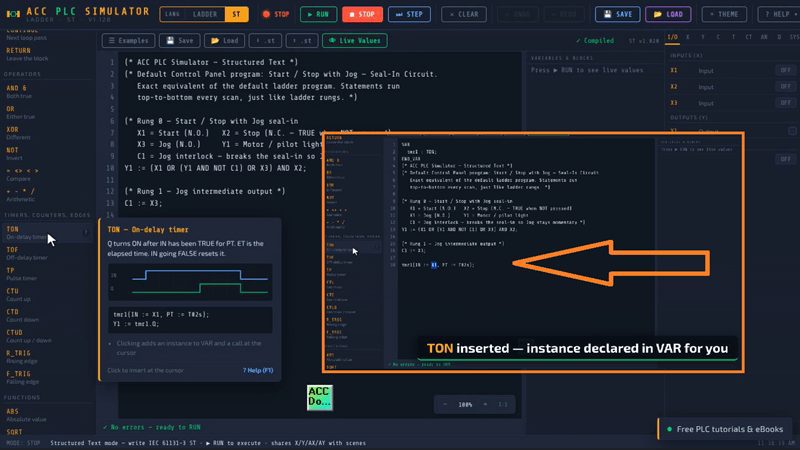
Switch to ST mode and the left side becomes a Structured Text instruction list — 57 items covering program structure, data types, statements, operators, timers, counters, edges and functions. Click one and it is inserted at your cursor as complete, compilable code. Click TON and the simulator also declares the timer instance (tmr1 : TON;) in your VAR block and highlights the input so you can type over it.
Try It in Five Minutes: The Traffic Light Drum
Use the Five Steps to PLC Program Development to run the drum example yourself.
STEP 1 — Define the Task
Cycle a four-way intersection: North/South green, yellow, all red, then East/West green, yellow, all red. A switch enables the sequence and a pushbutton resets it.
STEP 2 — Define the I/O
| Address | Description |
|---|---|
| X3 | Run enable switch (ON = run) |
| X4 | Reset pushbutton (N.O.) |
| Y1 / Y2 / Y3 | NS green / yellow / red |
| Y4 / Y5 / Y6 | EW green / yellow / red |
| D1 | Drum step register (1–6) |
| D2 | Completed cycles |
| C1 | Drum done bit (ON one scan per cycle) |
STEP 3 — Develop the Sequence
Six steps, 16 seconds per cycle — see the step table above. The drum only advances while X3 is ON.
STEP 4 — Develop the PLC Program
Three rungs:
X3→ DRUM (step register D1, outputs Y1–Y6, reset X4, done C1)P C1→ INC D2 — count each completed cycleX4→ MOV 0 → D2 — clear the count
Download acc-example-traffic-drum.json and import it with LOAD.
STEP 5 — Test the Program
- Click CONNECT and launch the Traffic Light Intersection scene.
- Press RUN and turn on X3 in the I/O panel.
- Watch D1 step 1 → 6 and the lights follow.
- Now make an online edit: double-click the DRUM, click Edit steps…, change step 1 to 10000 ms, Save steps, Apply, then ACCEPT. The intersection keeps running with the longer green.
Using AI to Write Programs? It Knows About All of This
The AI Program Guide and the Python validator were updated with every release this week. Point ChatGPT, Claude, Gemini or Copilot at accautomation.ca/simulator/ and ask it to convert a program. The guide covers every new instruction, and the validator checks the ladder file before you import it. As with any AI-written program, verify it in the simulator before you trust it. Five new example programs ship with it:
- Parts buffer and run-time (edge contact, CTUD, LIM, RTO, system bits)
- Batch math (SCL, CPT, ADD, INC, fault flags)
- Recipe select (pointers)
- Bottle tracking (BSL)
- Traffic light drum (DRUM)
Conclusion
In one week the simulator gained the instructions you need to move past start/stop circuits: data handling, indirect addressing, sequencers, shift registers and program flow. Online editing lets you practice changing a running program before you ever touch a live machine. And every instruction now explains itself the moment you hover over it.
It is still free, still runs in the browser, and still works with any Modbus-capable PLC through the bridge.
Next step: open the ACC PLC Simulator, load the traffic drum example, and make your first online edit. Then tell me in the comments which instruction you want a full tutorial on next — bottle tracking with BSL and the traffic drum are already in the queue.
Related posts