
This PLC programming software article was written by Chris Urban, an automation educator and PLC trainer with over 40 years of hands-on experience. Find Chris on YouTube and LinkedIn. — CU
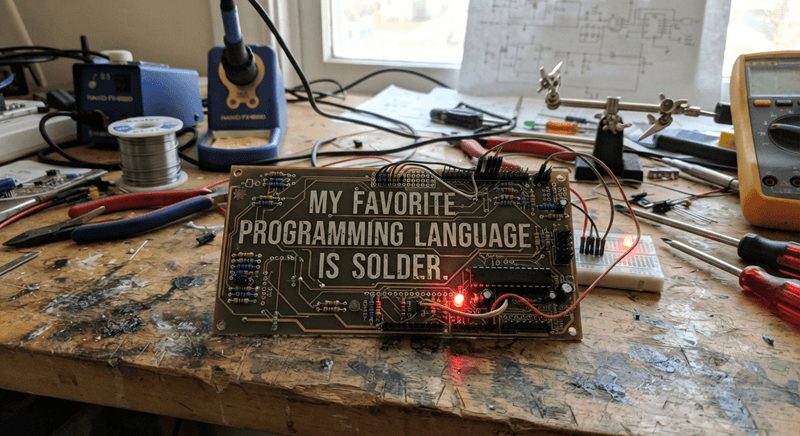
Please allow me to start with a quote from Robert A. Pease: “My favorite programming language is solder.”
Among the mistakes I made when I was younger, I chose to fix computer hardware. There was a time when you could choose. Even IBM made the same mistake in 1981 — though on a much bigger scale.
They chose to make personal computers and did not bother to consider an operating system as more than an appendage to their big invention. Looking down on Microsoft, IBM decided it was time-saving to simply pay them royalties for something insignificant called software.
Computer-job related, the era of choosing between fixing hardware and programming software is over.
To rephrase from a smarter engineer than me: “My grandfather taught me to pick up screws or washers on the street, because after cleaning they certainly could be used again.”
Am I still dreaming of fixing a radio? Meh.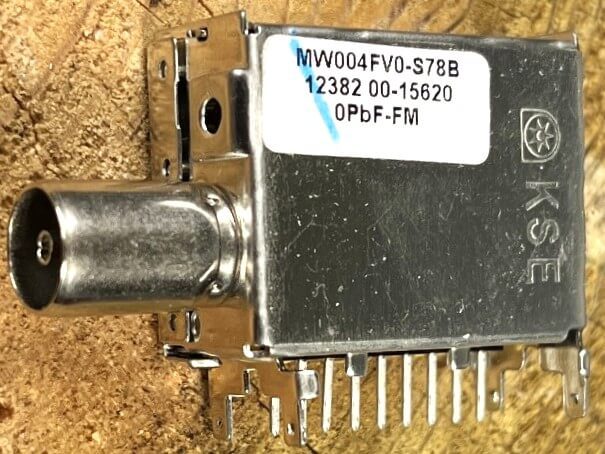
Photo courtesy Chris Urban.
There is nothing left to repair.
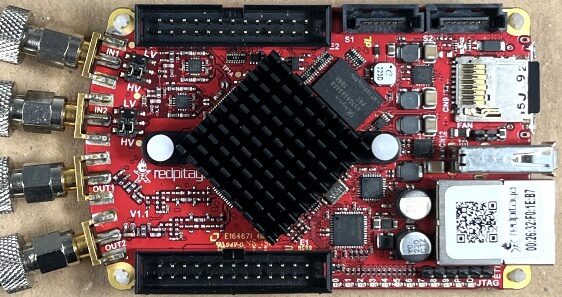
What about an SBC? They are not designed to be fixed anyway.
So is software really a thing? I will pick my answer from the foreword of a famous troubleshooting book:
“Your idea is so good that, if you give me 20 minutes, I’ll be sure that I was the first one to think of it.”
This is software. It is like an idea — easy to pass off as one’s own in the blink of an eye.
You cannot touch it, not even the ink it was written in, because it is just on your SSD, in the RAM, and on your screen.
What Kind of Software Do You Have on Your Computer?
Is it all designed to solve our own problems? And where is the thing that lets me program a PLC?
Here are the main categories of software you can find on your PC.
#1 — Firmware
Programmed mostly in assembling language. It initialises a hardware device upon startup, controls power management, low-level diagnostics, and so on. The firmware is absolutely required to start any device today, but the user does not see any direct benefit from its presence.
#2 — The Operating System
Programmed mostly in C and C++, but small sections can be in assembling — even some Rust lines in the Linux kernel. Similarly to the firmware, the OS does not solve any of the user’s needs like writing documents, making a presentation for your clients, watching videos, or surfing the internet.
If overstuffed, it can frustrate the user, or even prevent the computer from operating —
see the blue screen of death.
As a rule of thumb, any OS is only useful to keep your computer operational, and it is designed to perform one basic task: management. What does it manage?
- All processes between the memory and the processor — a kind of traffic controller.
- The working memory (RAM) — like a super-master librarian. Any time you open an app, part of it stays in the RAM. Open several apps and the RAM splits into sections, one for each app.
- The variety of files — organised into hierarchical directories, handling their storage on HDD, SSD, and clouds. All of this is done through the proprietary file system, like NTFS for Windows, ext4 for Linux, and APFS for Apple.
- The communication with the outside world: other computers, internet, and peripherals like keyboard, printer, scanner, and audio/video systems. It converts computer data so these external devices understand what to do with it.
- The security issues: user authentication and accounts, access permissions to files, protection against intruders through firewall and file/drive encryption, and so on.
There is an endless debate about what kind of operating system you should have on your computer. It depends on what you use the computer for, but also on your personal taste and computer skills.
Traditionally, professionals who process complex arrangements of text, pictures, and video clips — like a digital magazine or newspaper — will prefer Apple’s OS.
Those who like the Linux environment — like me — are going to remain stuck with two computers, because all major PLC manufacturers designed their software for the Windows environment only.
Despite being a very stable system compared to Windows, Linux has a major drawback: distros. Not only is there no full compatibility among various distros, but the fragmentation goes much further — to packaging formats and C library (libc) changes — so the engineering cost to migrate to Linux goes too high for a much smaller market than Windows-based PCs.
If you want more information on the matter, try this: PLC Programming on Linux — Complete Guide 2026.
I managed to install the Omron CX-One suite on Apple, on a Windows VM. The installation went flawlessly and the software worked like on a Windows computer. Even the transfer of the program to the PLC was fine. Until today, I was unsuccessful on Linux machines.
Forget about Wine — it is not ready for such a complex sequence of files and interfaces that the PLC software suites request. And if you ever succeed in installing it on a Windows Virtual Machine, in the end it is going to be a complete mismatch, with the application output drivers still designed for Windows.
Keep in mind that such a VM will request 8 or 16GB of RAM, and Linux also needs at least 8GB to operate fine.
#3 — The Applications
Here is all the useful stuff that makes the user happy: Office suite, internet browsers, media readers, players and writers, photo and video editors, CAD, PLC software — and the list goes on and on.
If games are of any use to computer users, that is another debate to have. Just so you know, the OS sees games as applications too.
#5 — The Utility Software
Anti-malware of any kind, VPN, special third-party drivers, Windows registry cleaner, and so on.
Note: while any OS needs protection against intrusions and malware, Linux does not need the kind of utility software that wastes Windows users’ time. Linux does not have a registry to fix and clean. It does not need de-fragmentation software either, because the more you use it, the better it organises its files and yours.
So How Do We Program Our PLCs? (PLC Programming Software)
If the PLC programming languages are not like the ones we use on personal computers — as you saw in my previous article — how can we program our PLCs then?
Each PLC manufacturer releases its own Windows-based software application, exactly like you open the Arduino IDE or the ⭐ ACC PLC Simulator. Once you load the app, you can pick the PLC model, choose the programming language from the list available, and at the end transfer the program to the PLC.
Please notice that the applications are all proprietary, so they are not compatible with each other, nor can you use any of them to program a PLC made by a competitor.
Here is a list of software applications used to program PLCs by some major manufacturers.
| Manufacturer | Programming Software |
|---|---|
| Allen-Bradley | RSLogix 500 — for legacy hardware |
| Connected Components Workbench — micro control systems | |
| Studio 5000 Logix Designer — for modern controllers | |
| ABB | Automation Builder — for AC500 series |
| AutomationDirect | Do-More — for BRX, H2 and T1H series |
| Click Programming Software — for C0 and C2 series | |
| Productivity Suite — for P1000, P2000 and P3000 series | |
| DirectSOFT6 — for DirectLogic series | |
| Crouzet | Millenium II / Millenium 3 — for legacy controllers |
| Crouzet Soft | |
| Hitachi Industrial | LEW (Ladder Editor for Windows) — for micro-series |
| PRO-H — for older H and EH series | |
| HX-CODESYS — modern IDE for HX Series | |
| IDEC | Automation Organizer suite |
| Klöckner-Moeller (Eaton-Moeller) |
Easy Software |
| Mitsubishi Electric | GX Works3, GX Works2 |
| Omron | CX-Programmer, as part of CX-One suite |
| Scadapack | Telepace Studio |
| Schneider Electric | EcoStruxure |
| Siemens Logo | LOGO! Soft Comfort |
| Siemens S7 | TIA Portal — Step 7 |
Is the Program I Make for the PLC Considered Software too?
Absolutely. Of course it is.
And this brings us to the other category of computer software I skipped on purpose.
#4 — The Programs You Make
This is your work. And it raises the next question: remember that you can transfer only one program into the PLC. So what do I do with all the PLC programs I worked on?
Answer: you should do back-ups of your computer regularly, on an external drive. It’s more practical than saving anything on clouds.
However, the most valuable part of your PC is your personal work: Office files, personal pictures and videos, and the PLC programs you worked on. You should ALWAYS save copies on external drives.
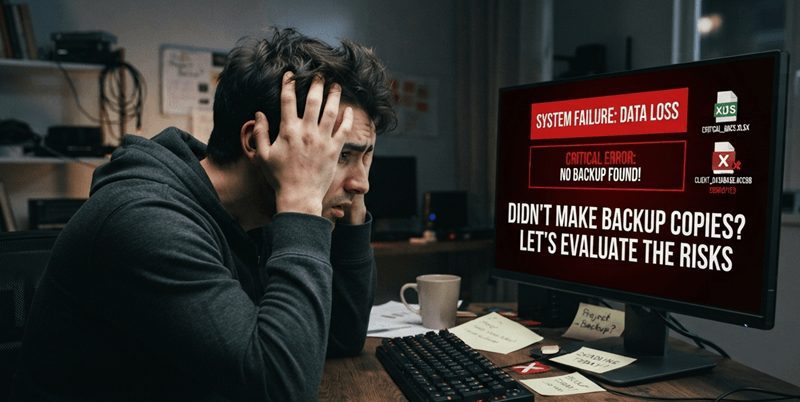
Didn’t Make Backup Copies? Let’s Evaluate the Risks
Scenario A — Your PLC application crashes for whatever reason. Reinstalling it will be time-consuming, but chances are you will not lose your PLC programs.
Scenario B — It is recommended to store all your personal files on a different partition than the one containing the operating system. So if your OS crashes, you can reinstall it. Time-consuming again, but your work will not be affected, as it is stored safely on an adjacent partition.
Scenario C — You put your trust in the quality of Windows 11, so you did not consider spending time with too many precautions. Your personal files are together with the OS on the same partition.
Then the risk is considerable. When — and not if — the OS decides to crash, with no warning, then you can reinstall:
- Windows 10/11, using the Media Creation Tool
- All software applications, including the PLC programming apps. Unlike in Scenario A or B, this is going to be much more time-consuming.
But still more bothering is that nobody is giving you back your PLC programs nor your other personal files. The only program you can recover will be the one you can download — if it is still on the PLC. As for the other programs you worked on, too bad. They will be gone.
A Closing Word — and a Tribute
Before closing with the same quote, here is a 13-year-old post signed “Clear Ether” that I would like to share. It comes from the EEVblog forum, on Robert A. Pease’s book Troubleshooting Analog Circuits:
A friend of mine just gave me a beat-up dumpster copy of Troubleshooting Analog Circuits by Robert A. Pease. Bob Pease died in a car wreck returning from the funeral of his long-time friend and fellow electronics pioneer Jim Williams, who died the week before. This title has wide applicability, especially for that analog circuit so often found nestled with digital circuits. While this book is somewhat beyond my level of competence, I was able to learn something from almost every chapter, and it held my interest. I will never again so blithely trust passive components.
Much of the advice in the book is applicable for fixing computers, TVs, and whatever else. It is an old title but still very useful.
“My favorite programming language is solder.”
— Robert Allen Pease, 1940 – 2011
This article is part of Chris Urban’s series on ACC Automation. Read the previous piece: The Real Reason PLCs Use Ladder Logic Rather Than C++
Want to try programming a PLC right now? The free ACC PLC Simulator runs ladder logic and Structured Text in your browser — no install, no login.
Watch this on YouTube: PLC Programming Software: What It Is and How to Protect Your Work!
About the author: Chris Urban is an automation educator and PLC trainer with over 40 years of hands-on experience. Find him on YouTube and LinkedIn. — CU