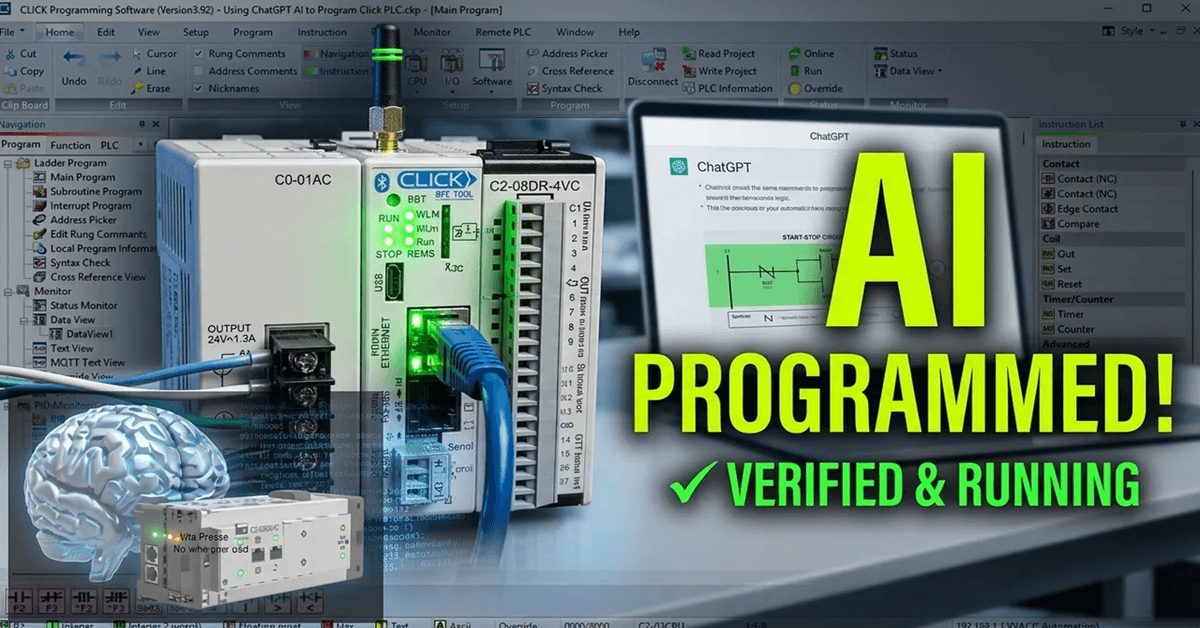
Using AI to program a Click PLC. In this post, I will show you how I use AI to help me program an AutomationDirect CLICK PLC. We will describe a simple machine in plain English, let the AI turn that description into a ladder logic plan and an address list, and then enter that logic in the free CLICK programming software. I will also show you where the AI gets things wrong, because that is the part most people skip — and it is the part that keeps your machine and your hands safe.
You can follow the whole workflow for free. The AI help, the CLICK programming software, and prototyping the logic in a free online ladder simulator all cost nothing. When you are ready to test the real program, you will need the CLICK PLC itself — and that is one of the least expensive PLCs you can buy.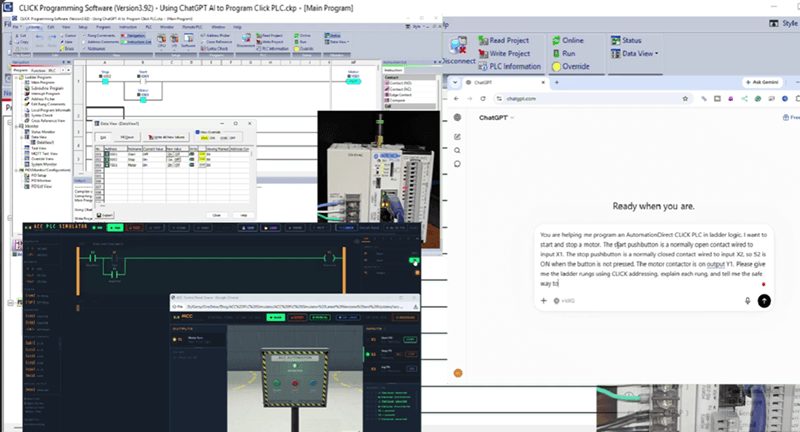
Previously in this CLICK PLC series, we looked at Click PLC timers and counters and the compare and math instructions.
If you are brand new, start with the PLC Beginner’s Guide.
What AI can and cannot do for a Click PLC program
Let me set expectations before we start, because there is a lot of hype right now.
AI will not push a finished program into your PLC. It does not open the CLICK software, it does not know your exact wiring, and it will not test itself against a real motor. What it will do — and it does this well — is act like an experienced programmer sitting beside you. You describe the machine, and it gives you back an I/O address list, a rung-by-rung logic plan, and a plain-English explanation of every instruction it used. It is also very good at explaining code you already have and at helping you find a logic mistake you have been staring at for an hour.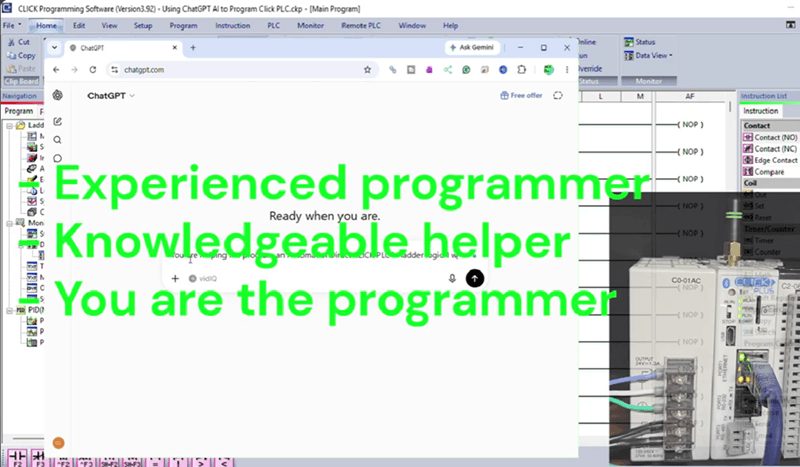
So think of AI as a knowledgeable helper, not an autopilot. You are still the programmer. You enter the logic, you verify it, and you sign off on it.
Getting the free tools ready
I always start people with the free tools, because you can learn the entire workflow before you spend a dime.
Download the CLICK Programming Software (Free Download Link). This is where you will actually build the ladder logic. For the AI side, any of the common assistants will work — I use them straight from a web browser and simply type my request in plain English.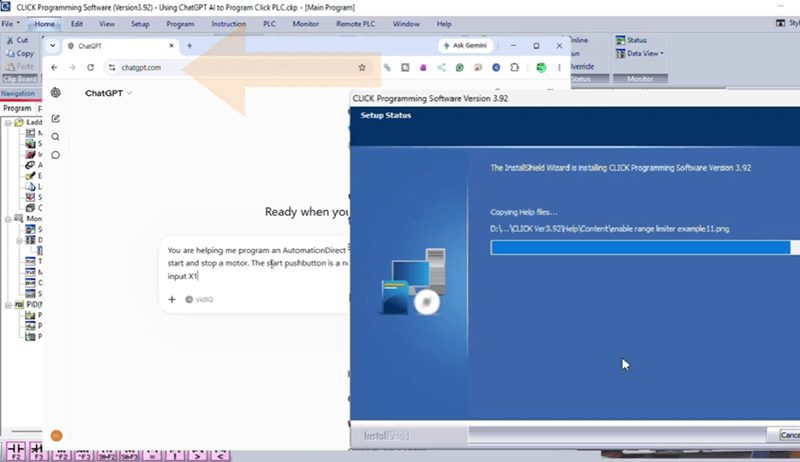
One thing to know up front: the CLICK software does not have an offline simulator, so you cannot run a program without the PLC connected. That is not a problem for learning. To prove out the logic with no hardware at all, I prototype it in a free online ladder simulator like the ACC PLC Simulator. 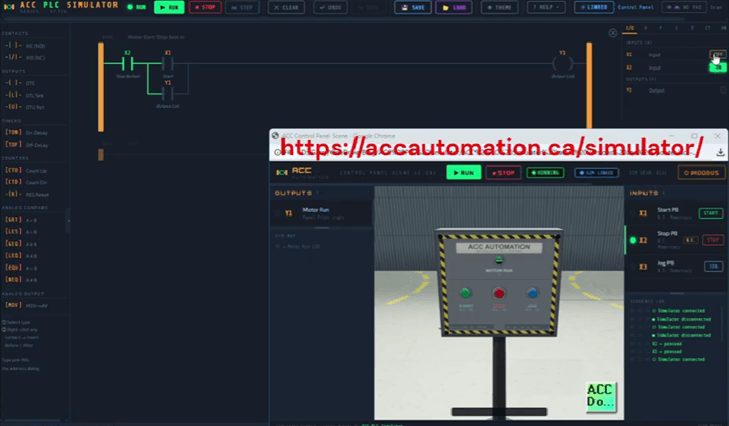
Then, when I test the real program, I connect the CLICK PLC, go online, and use the Data View window to force and monitor the bits — with the motor disconnected — before it ever drives a real output.
Describing your machine to the AI
The quality of what you get back depends almost entirely on how you describe the machine. Vague in, vague out. The trick is to give the AI the same information you would give a co-worker: the inputs, the outputs, how the buttons are wired, and what you want to happen.
Here is the kind of prompt I use for a simple motor start and stop:
You are helping me program an AutomationDirect CLICK PLC in ladder logic. I want to start and stop a motor. The start pushbutton is a normally open contact wired to input X1. The stop pushbutton is a normally closed contact wired to input X2, so X2 is ON when the button is not pressed. The motor contactor is on output Y1. Please give me the ladder rungs using CLICK addressing, explain each rung, and tell me the safe way to handle the stop button.
Notice how specific that is. I told it the exact addresses, I told it the stop button is normally closed, and I told it what the output drives. That last detail about the stop button matters more than anything else, and I will come back to it.
Turning the AI’s answer into a Click address list
The first thing the AI gives back is an address list, and this is a great habit to build. For our example it looks like this:
| Address | Type | Description |
|---|---|---|
| X1 | Input | Start pushbutton (normally open) |
| X2 | Input | Stop pushbutton (normally closed, ON when not pressed) |
| Y1 | Output | Motor contactor |
In the CLICK software I enter these in the Address Picker with the same nicknames, so my program reads clearly. 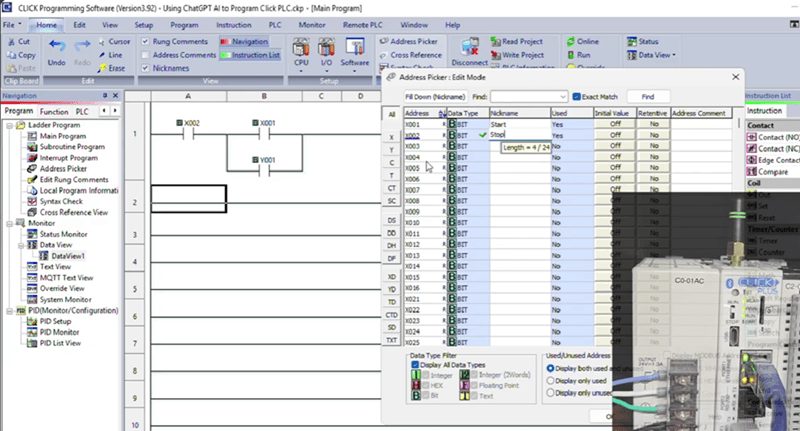
A tidy address list is half of a good program, and having the AI produce it for you is one of the quiet time-savers here.
Building the ladder logic — a motor start and stop
Now the useful part. The AI returns a single rung of ladder logic, described in words like this: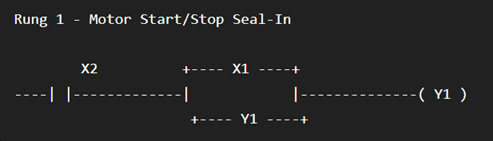
Place a normally open contact for the Start pushbutton, X1. In parallel with it — a branch underneath — place a normally open contact for the motor output, Y1. Put those two in series with a normally open contact for the Stop input, X2, and end the rung with the output coil Y1.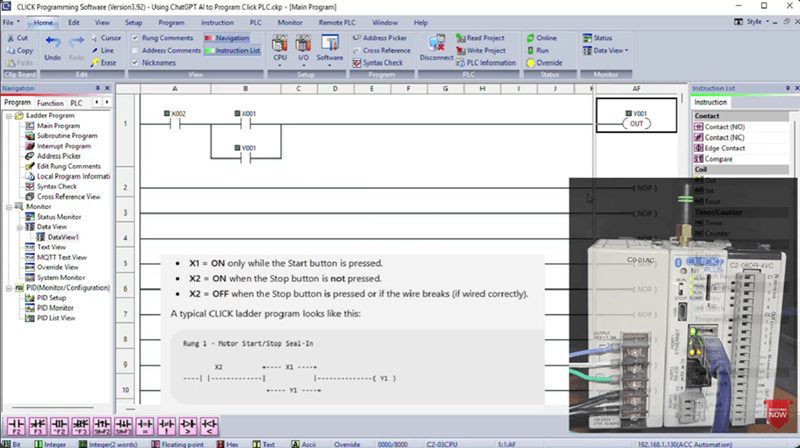
That gives you the classic seal-in, or “latching,” circuit. Press Start and X1 closes, which energizes Y1. The Y1 branch then seals the rung so the motor stays running after you let go of the button. Because the stop button is wired normally closed, X2 is already ON, so it lets current pass. Press Stop and X2 drops out, the rung breaks, and the motor stops.
I enter exactly that in the CLICK software, one contact at a time. Remember, the CLICK software has no offline simulator, so to check it I connect the PLC, go online, and open Data View. From there I can force the start and stop bits and watch the Y1 output turn on and off — with the motor disconnected — before I trust it on the real machine.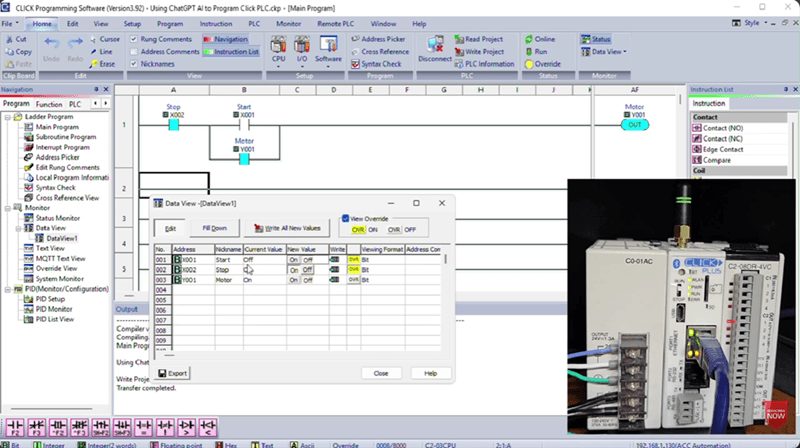
When the AI gets it wrong — and how to catch it
Here is the honest part, and the reason you never paste AI logic straight into a running machine.
The single most common mistake I see the AI make is with that stop button. Sometimes it will tell you to wire the stop button normally closed AND use a normally closed contact for X2 in the ladder. That is a double negative. With the button at rest, X2 is ON, and a normally closed contact would then be open — so the motor would never start. Other times it will assume a normally open stop button, which works on the bench but is unsafe, because a broken wire would leave you unable to stop the motor.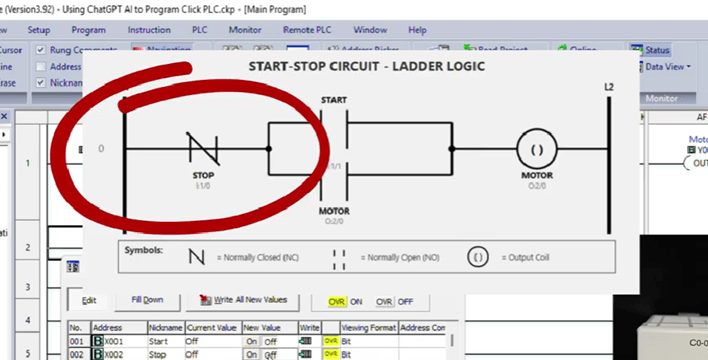
I catch these by doing two things every time. First, I ask the AI to explain the rung back to me, out loud in plain English, and I check that the explanation matches what I know about my wiring. Second, I test it on the PLC with the field wiring off — going online, forcing the start and stop bits in Data View, and watching the output turn on and off — before it ever controls a real motor. The AI is a fast helper, but you are the safety check. That never changes.
Using AI to explain and troubleshoot existing code
The workflow runs the other way too, and this is where I get the most value day to day. When I open an older program and cannot remember why a rung exists, I describe the rung to the AI and ask what it does and what might break it. It will walk through the logic and often point out a race condition or a missing interlock I had not considered. It is like having a second set of eyes that never gets tired.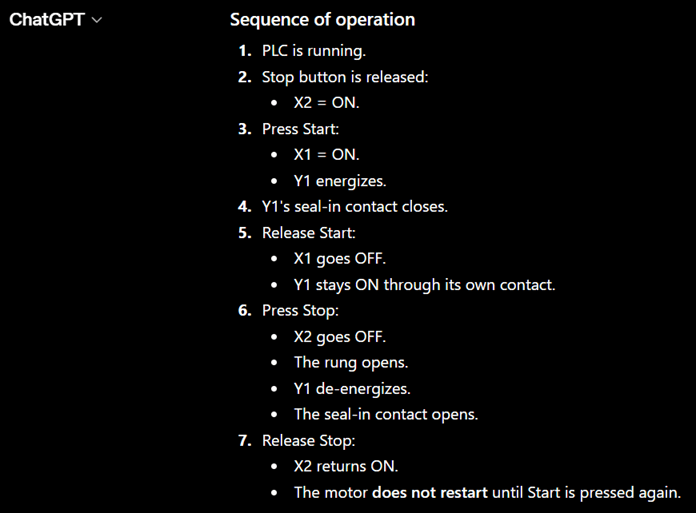
That, to me, is the real place AI fits with a CLICK PLC right now. It will not replace you, and it will not program the machine for you. But it will help you plan faster, learn the instructions more deeply, and catch your own mistakes sooner — and it will do all of it while you keep your hands on the free CLICK software and prove the logic yourself.
Watch on YouTube
Watch on YouTube: Using AI to Program a Click PLC
Downloads and Resources
- CLICK Programming Software (Free Download Link)
- CLICK PLC Instruction Set (Free Reference)
- ACC PLC Simulator (Free)
- CLICK PLC Series
- PLC Beginner’s Guide
- Shop the hardware: AutomationDirect
- Parts Guide
If you have any questions or need further information, please contact me.
I hope this is helpful to you.
Regards,
Garry
ACC Automation
http://www.accautomation.ca